1.Getting started
New account
Open ommini.com/login.html?sektor=emlak, choose the Sign Up tab and enter your name, email and password. Accounts created from this address are set up as Ommini Real Estate accounts, and every time you sign in you go straight to My Listings.
After signing up, click the verification link sent to your email. On the Free plan, your email must be verified before your listing allowance becomes available.
If you already have an Ommini account
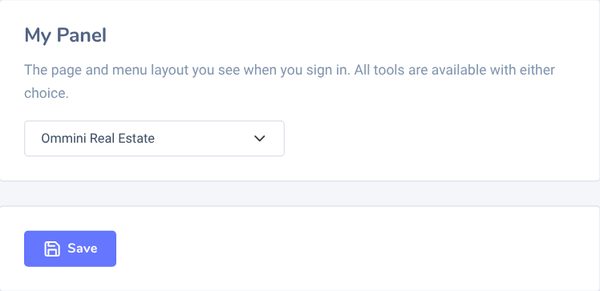
You do not need a new account. Go to Settings in the left menu, choose Ommini Real Estate in the My Panel box and press the Save button below it. From then on My Listings opens when you sign in, and Ommini Real Estate sits at the top of the left menu. All social media tools remain available with either choice.
My Listings page
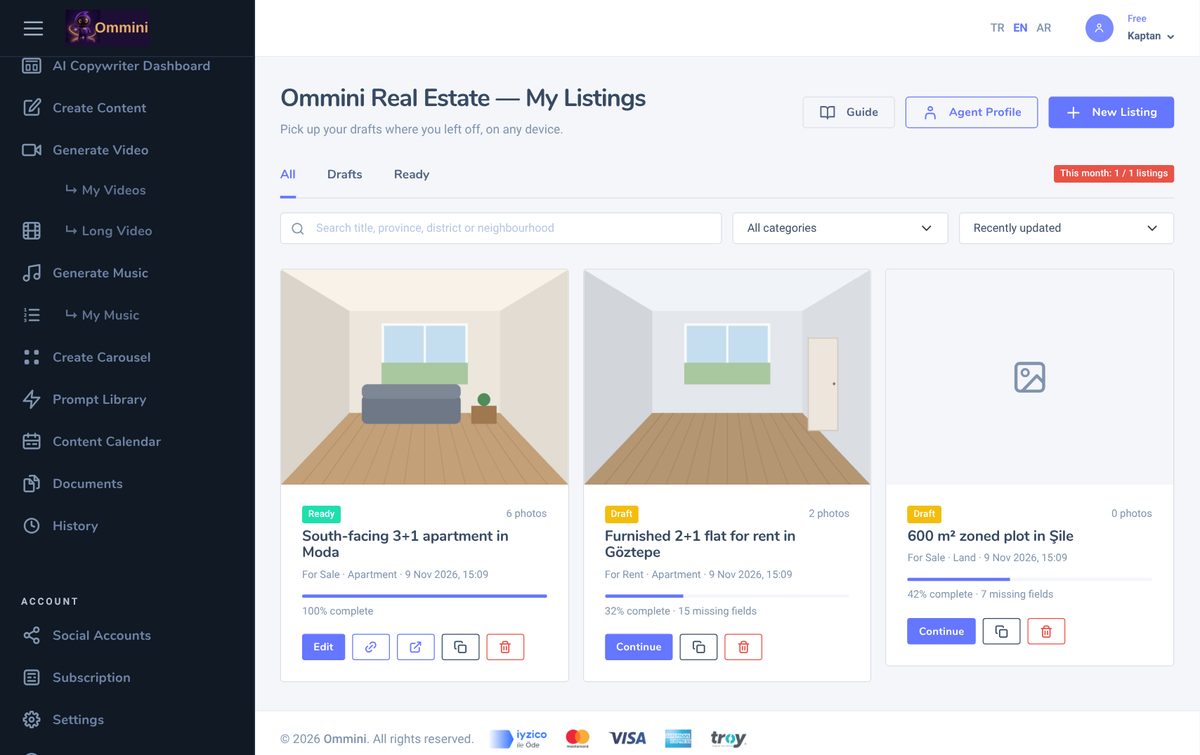
All your listings appear here as cards. Use the tabs at the top to see All, Drafts and Ready listings separately. Type a title, province, district or neighbourhood in the search box to find a listing, and use the lists next to it to filter by category and sort by recently updated, newest or price. The badge on the right shows how many of this month's listing credits you have used (e.g. This month: 1 / 5 listings); it turns red when your credits run out.
2.Agent Profile
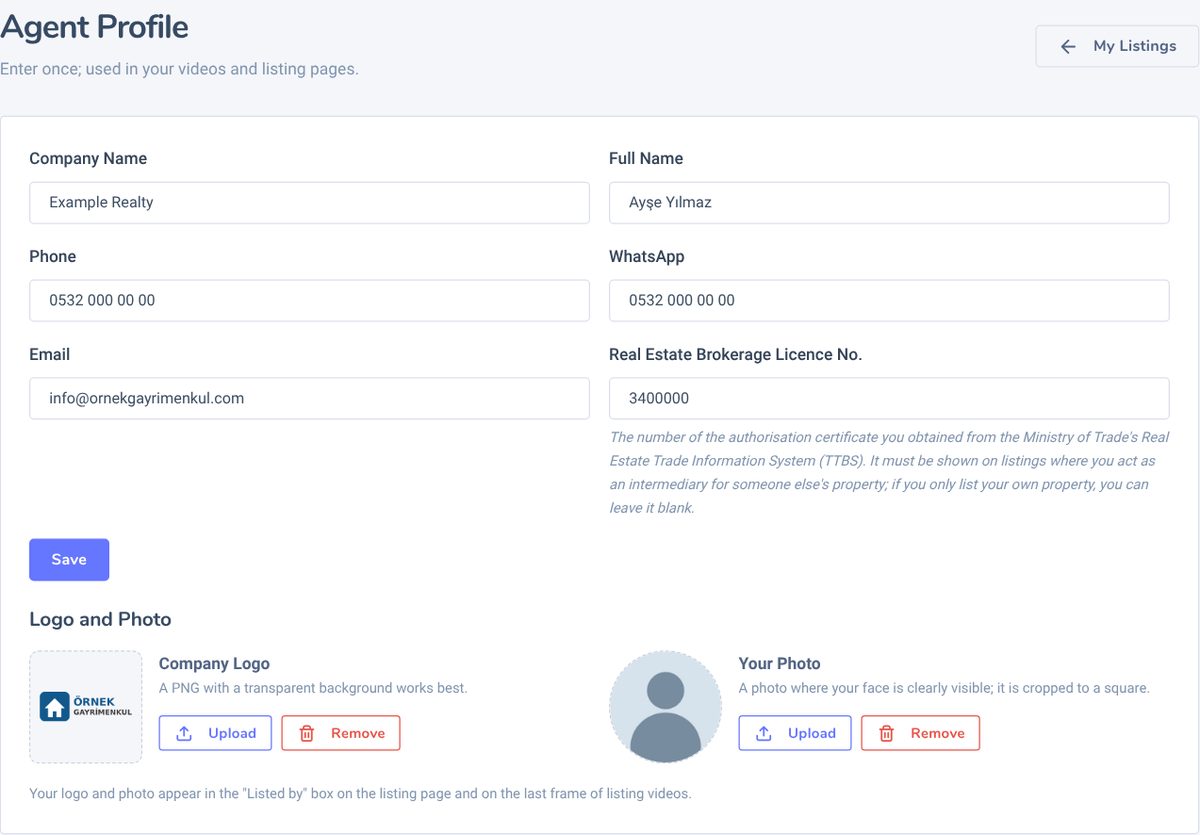
On the My Listings page, press the Agent Profile button at the top. You enter these details once; they are used in the "Listed by" box on all your listing pages and on the final frame of your listing videos.
| Field | Where it is used |
|---|---|
| Company Name, Full Name | In the "Listed by" box on the listing page. |
| Phone | Shown on the listing page; the Call button dials this number. |
| The Message on WhatsApp button opens a chat with this number, with a ready message containing the listing title and link. You can write it as 0532 123 45 67; write numbers outside Turkey with the country code (e.g. +31 6 12345678). | |
| As a clickable email address on the listing page. | |
| Real Estate Brokerage Licence No. | Shown on the listing page as "Brokerage Licence No". This is the number of the licence you obtained from the Ministry of Trade's Real Estate Trade Information System (TTBS). It must be shown in listings where you act as an intermediary for someone else's property; if you only list your own property, you can leave it empty. |
| Logo and Photo | Add your company logo (a PNG with a transparent background works best) and a photo in which your face is clearly visible with Upload; the photo is cropped to a square. Both appear in the "Listed by" box on the listing page and on the final frame of your listing videos. Each image can be up to 10 MB. |
3.Creating a new listing
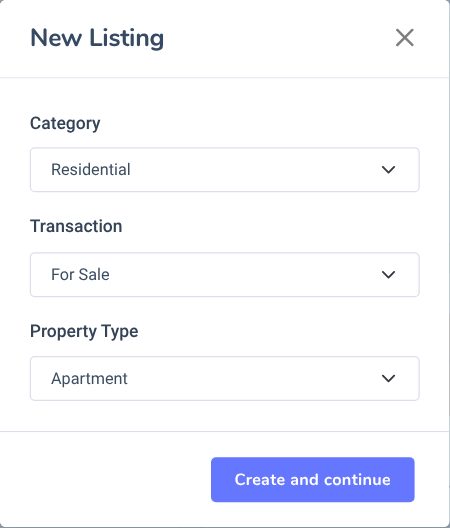
On the My Listings page, press the New Listing button. In the window that opens:
- Category: Residential, Commercial, Land, Building, Timeshare or Tourist Facility.
- Transaction and Property Type: the options depend on the category, and the type list follows the transaction you choose. Residential: For Sale, For Rent, Daily Holiday Rental and Transfer Sale. Commercial: 24 types such as shop, office, warehouse and factory for sale and rent; 89 business types such as café, restaurant and hairdresser for transfer sale and transfer rent. Land: For Sale, For Rent or For Sale in Exchange for Flats. Building: For Sale or For Rent; Timeshare: For Sale. Tourist Facility: For Sale or For Rent, with types such as hotel, guesthouse, campsite and holiday village.
- Press Create and continue; the listing opens as a draft and you move on to the form.
You can have up to 50 draft listings at a time.
4.Entering listing details
The fields in the form depend on the category and type you chose; they cover all the details a listing portal asks for in that category. Fields marked with an asterisk (*) are required. The Completion bar at the top of the page shows the percentage, and the line below it lists the required fields that are still missing.
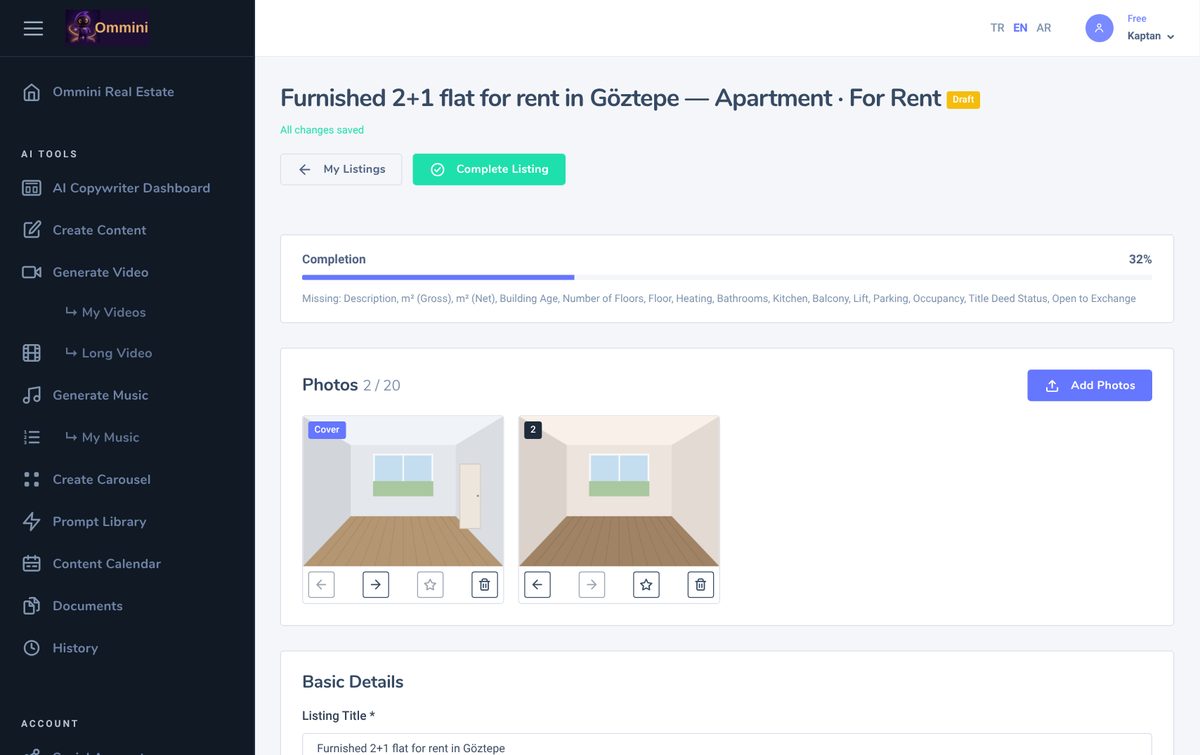
Basic Details
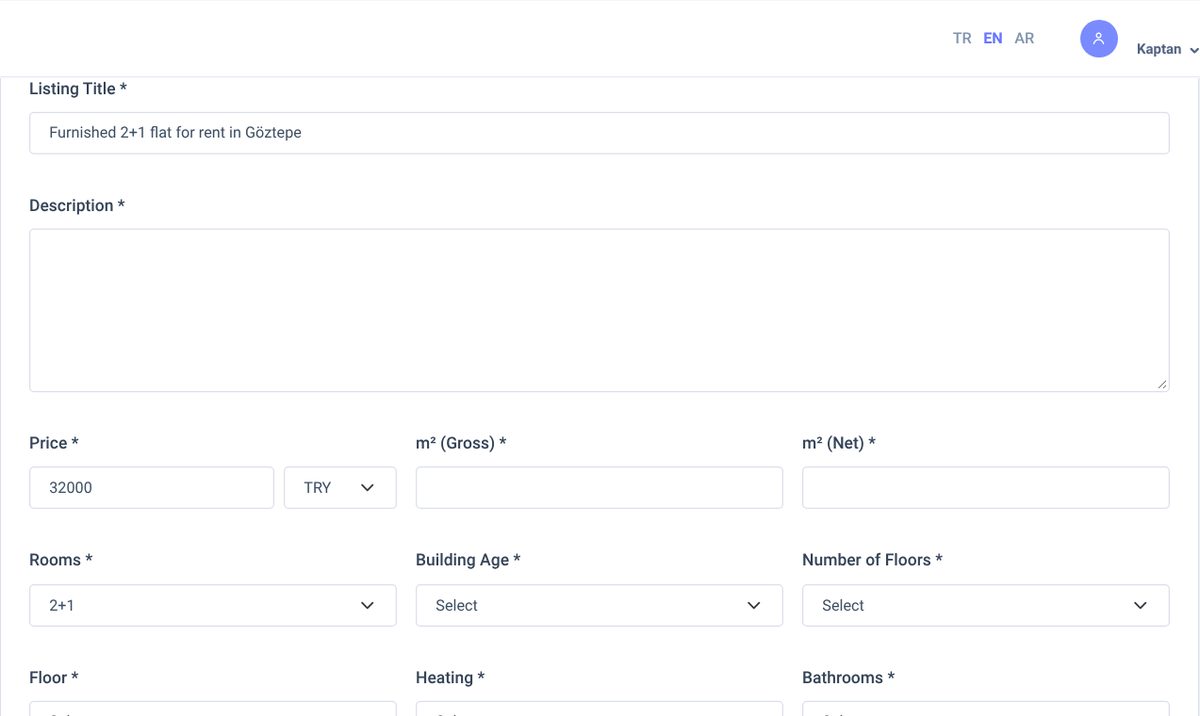
Residential listings: Listing title, description, price, m² (gross and net), number of rooms, building age, floor details, heating, bathrooms, kitchen, balcony, lift, parking, furnishing, occupancy, service charge, mortgage eligibility, energy performance certificate, title deed status and exchange. Write the price as digits only, without dots (e.g. 9750000); the English listing page shows it as 9,750,000 TRY. For rentals, "/ month" is added after the price.
Commercial listings ask for details such as the number of sections and rooms, heating, building age and title deed status; transfer listings use a simple form (m², title deed, exchange), so write business-specific details in the description. Land listings ask for zoning status, block, parcel and map sheet numbers, floor area ratio (KAKS) and height limit (gabari); building listings for the number of floors and flats per floor; timeshare listings for the period (week); tourist facility listings for star rating, number of rooms and beds, and open and covered area. You can write any details the form does not cover in the description.
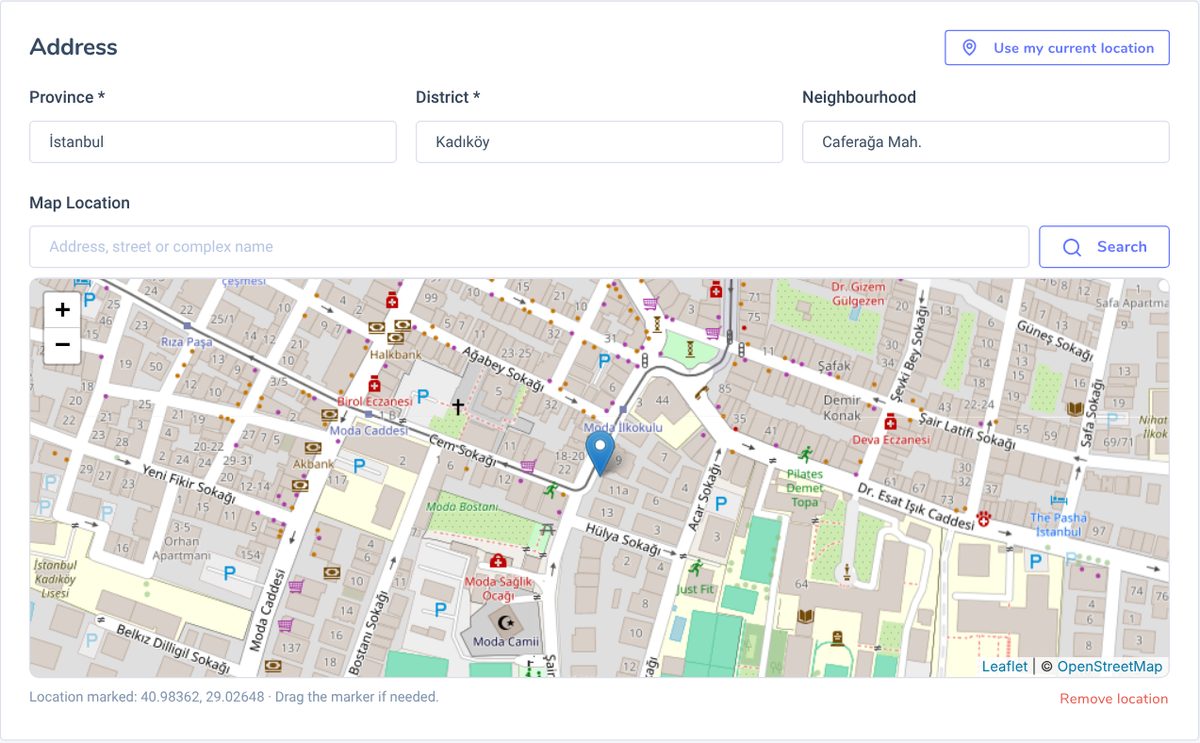
Address and map location
Province and district are required; the neighbourhood is optional. If you mark a map location, the listing page shows where the property is on a map; if you do not, the map section does not appear at all. You can mark the location in three ways:
- Search the map: type the address, street or complex name in the box under Map Location and press Search, then pick the right result. The map moves there and places the pin. When you enter the province and district, the map also moves to that area by itself.
- Tap the map: click or tap where the property is. Drag the pin to correct the location, or delete it with Remove location. When you are inside the property, you can also press Use my current location on your phone; the browser asks for location permission and the pin is placed where you are. Do not press it when you are somewhere else.
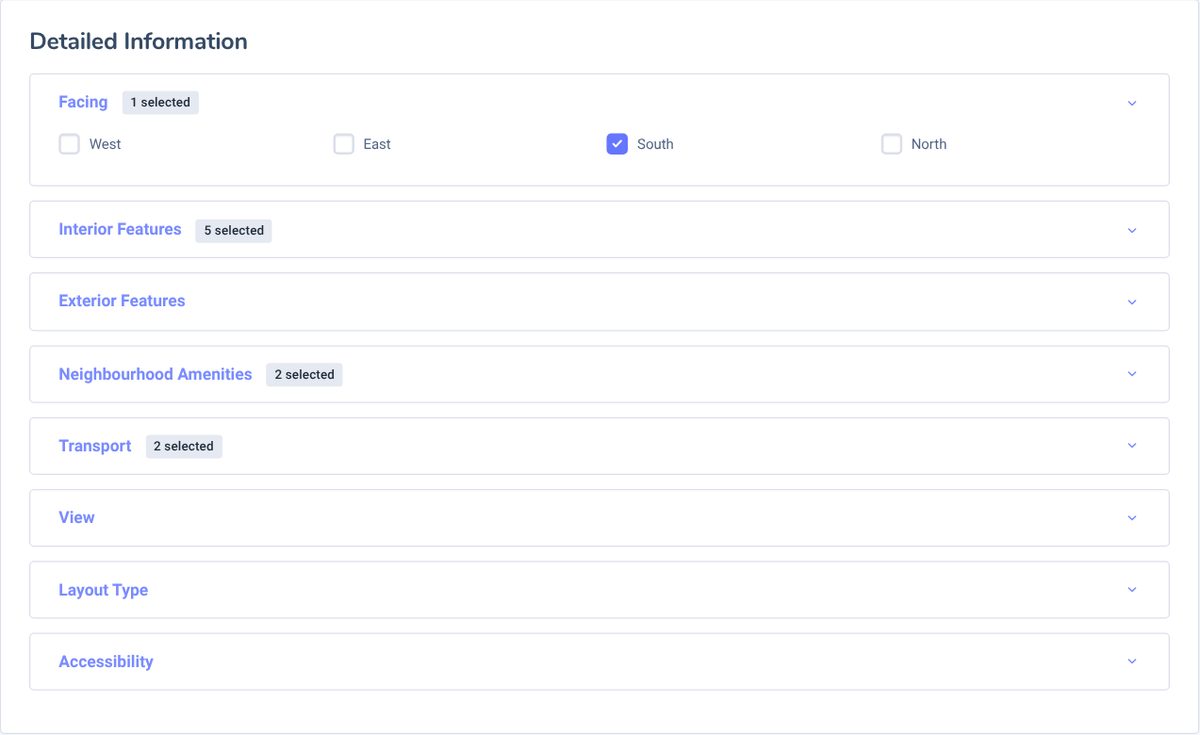
Detailed Information
For residential listings: Groups for facing, interior features, exterior features, neighbourhood amenities, transport, view, layout type and accessibility. Commercial and land listings have groups that fit their category (e.g. intended use, infrastructure, proximity, view). Press a group heading to open its options; the badge next to the heading shows how many options you have ticked. These choices appear on the listing page under "Features" and in the feature list of the AI-written listing texts, so tick only what is really there.
Legal Information
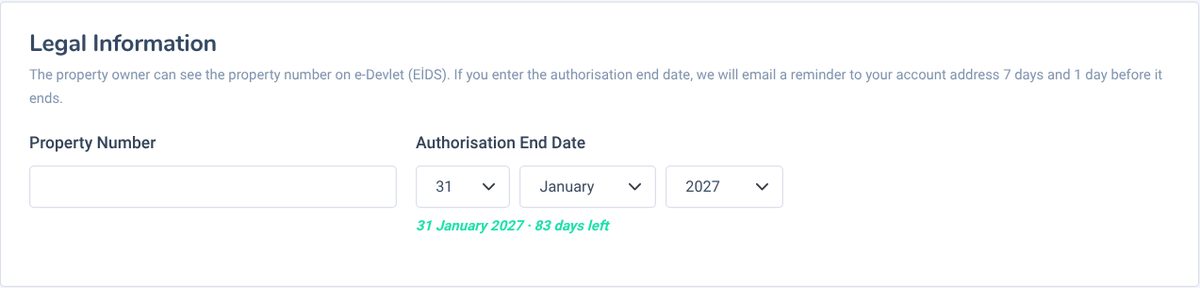
Property Number: The owner can see it on the Electronic Listing Verification System (EİDS) screen on e-Devlet, the Turkish government portal. Authorisation End Date: The day the authorisation you received from the owner ends. These two details are for your own records; they are not shown on the listing page or in the listing texts.
Authorisation reminder: If you enter the authorisation end date, a reminder is sent to your account email 7 days and 1 day before it ends (during daytime hours). From 14 days before the end date, the listing card on My Listings also shows a yellow "Authorisation ends in X days" badge. Once the date has passed, the listing page closes automatically: anyone opening the link sees "This listing is not available at the moment", and the card shows a red "Authorisation expired, page closed" badge. If the owner renews your authorisation, enter the new end date; the page reopens straight away on the same link and the reminders follow the new date. If you leave the field empty, no reminders are sent and the page never closes because of the date.
5.Drafts and autosave
The form has no Save button: everything you type is saved automatically about one and a half seconds after you stop typing. The line under the title shows the status: if you see All changes saved, everything is saved. If the connection drops, saving is retried every few seconds.
This means you can start a listing on your phone and continue on your computer: just press Continue on the draft card in My Listings, and the most recently saved version opens on any device.
6.Photos
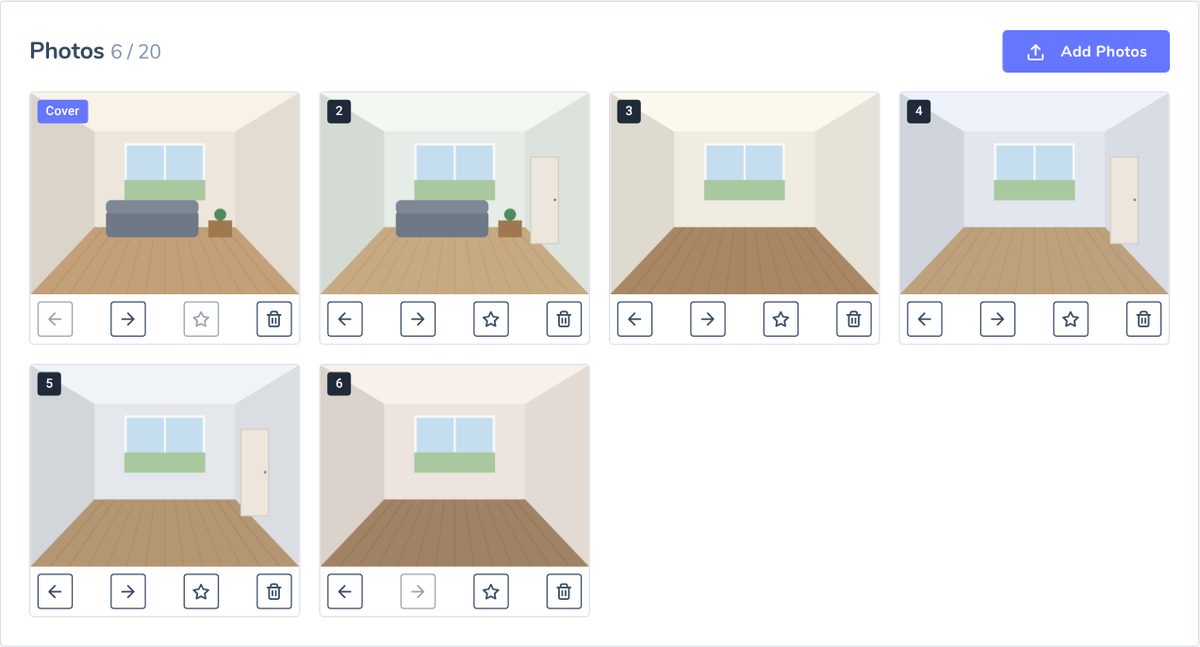
With the Add Photos button you can select several photos at once.
- A listing can have up to 20 photos.
- Format: JPEG, PNG or WEBP. Each photo can be up to 20 MB, and its shorter side must be at least 400 pixels.
- Large photos are resized so that the longer side is 2560 pixels; phone photos taken sideways are turned upright.
- Location and device information inside the photo (EXIF) is removed when it is saved, so the exact location of the property cannot be read from the photos on the listing page.
The buttons under each photo: ← move forward, → move back, ☆ make cover, bin delete. The first photo carries the Cover label: it is used on the My Listings card, at the top of the listing page and as the preview image when the link is shared on WhatsApp or social media. Use the best photo of the property as the cover.
7.Completing a listing and listing allowance
When all required fields are filled in and at least one photo has been added, press the Complete Listing button at the top. If anything is missing, a list of the missing fields appears; fill them in and press the button again. A completed listing gets the Ready badge, its listing page goes live and the listing texts box opens.
Monthly listing allowance
| Plan | Listings you can complete per month |
|---|---|
| Free | 1 (email must be verified) |
| Pro | 5 |
| Business | 50 |
- The allowance is used when a listing is completed for the first time. Draft listings do not use any allowance.
- Editing a ready listing does not use any allowance. If a listing goes back to draft and is completed again, it is not counted again either.
- Deleting a listing does not give the allowance back.
- Allowances renew at the start of each month.
- When your allowance is used up, "Complete Listing" suggests upgrading your plan; if you wish, you can go to the Subscription page. On the Business plan, if you want to work with more than 50 listings a month, write to us at destek@ommini.com.
Editing a ready listing
Every change you make to a ready listing appears on the listing page immediately; you do not need to share the link again. If you delete a required field (e.g. the price), the listing goes back to Draft and the listing page shows "not available". When you fill in the field and complete the listing again, the same link works again.
Copying a listing
If you are going to list a similar property in the same building or complex, press the Copy listing button on the card in My Listings. A new draft opens with all the details and Detailed Information selections; photos, the title deed number and the authorisation end date are not copied. Correct whatever is different and add the photos. The copy stays a draft until you complete it and does not use a listing credit.
8.Listing page and sharing
Every completed listing gets its own permanent link: ommini.com/ilan/…. The link is in the Listing page is live box at the top of the listing form; copy it with Copy link and share it on WhatsApp, in your Instagram bio, on Facebook or on your own website. The same action is also available on the ready listing card in My Listings. With the language selector next to the link you get the link to the English or Arabic version of the page; send that link to foreign buyers.

Sold, rented or taken offline
Use the buttons under the Listing page is live box to change the status of the page:
- Mark as sold (Rented for rentals, Transferred for transfer listings, Agreement reached for land in exchange for flats): the page stays open and a red Sold label appears above the title. People who received the link earlier see that the property is sold and can contact you about your other listings.
- Take offline: the page closes; anyone opening the link sees "This listing is not available at the moment". Your listing and its details are not deleted.
- Publish again: puts a listing you took offline or marked as sold back online on the same link. These actions do not use a listing credit.
On My Listings, the card of a sold listing shows a Sold badge and the card of a listing taken offline shows an Offline badge.
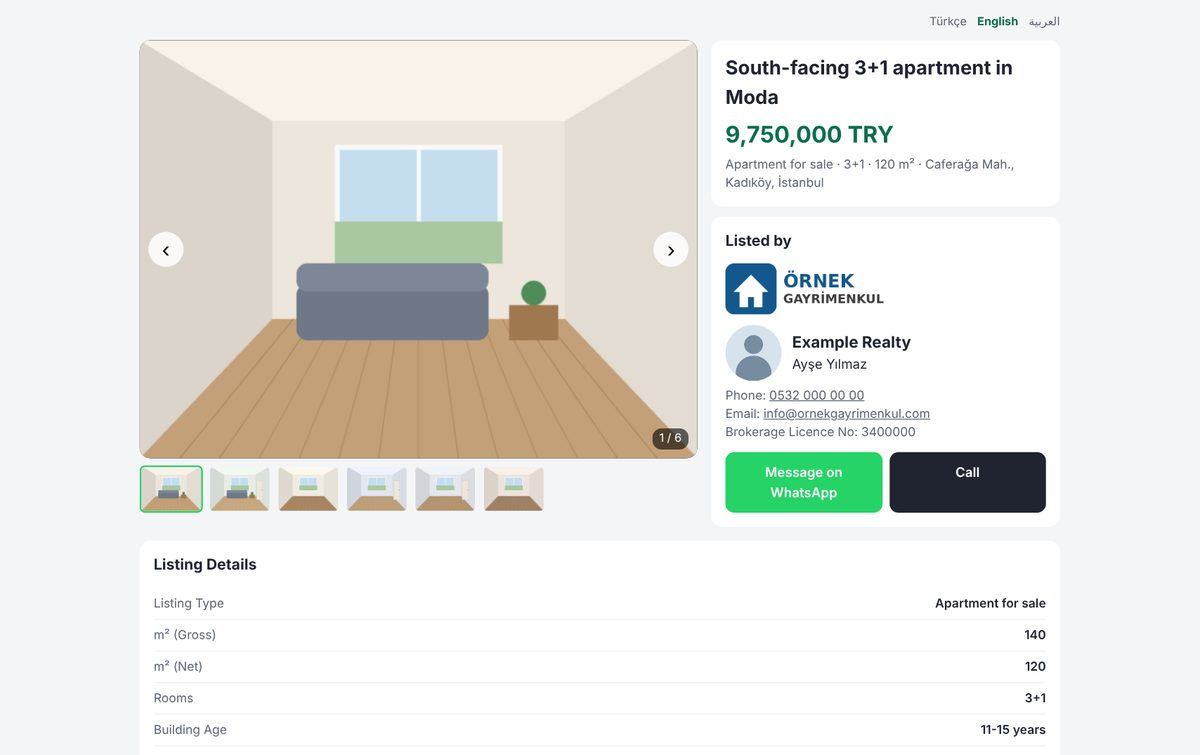
The page the buyer sees
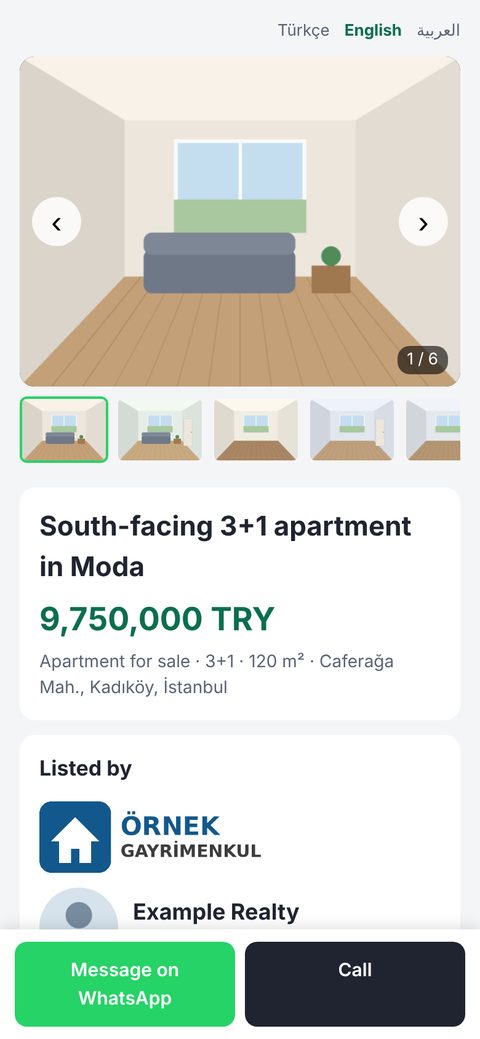
- Photo gallery: browse with the arrows, or by swiping on a phone.
- Title, price, short summary, listing details table, description and the features you selected.
- Map (if you entered a location) and an "Open in Google Maps" link.
- The "Listed by" box: your company logo, your photo and your details from the Agent Profile, with the Message on WhatsApp and Call buttons. On phones these two buttons stay fixed at the bottom of the screen.
Good to know
- When the link is shared, the preview shows the cover photo, the listing title, the price and a short summary.
- The property number and the authorisation end date are not shown on the page.
- Listing pages are not listed in search engines such as Google; only the people you share the link with can open them.
- There is a small "Made with Ommini Real Estate" line at the bottom of the page. On the Free plan this line is always shown; on the Pro and Business plans you can remove it by turning off the Watermark setting in Settings.
9.Listing texts
The Listing Texts box appears on the form of a ready listing. Press the Write Texts button; within 30–60 seconds the AI writes six texts from the details you entered:
| Tab | What it is for |
|---|---|
| Türkçe | Listing description for your website and property portals. |
| English | English description for foreign buyers. |
| العربية | Arabic description for Arabic-speaking buyers. |
| Sahibinden | Plain text to paste into the Sahibinden description field (no emojis, hashtags or contact details). |
| Social Media TR | Instagram/Facebook post in Turkish, with hashtags and the link to your listing page at the end. |
| Social Media EN | The same post in English. |
Press a tab, copy it with Copy Text and paste it wherever you like.
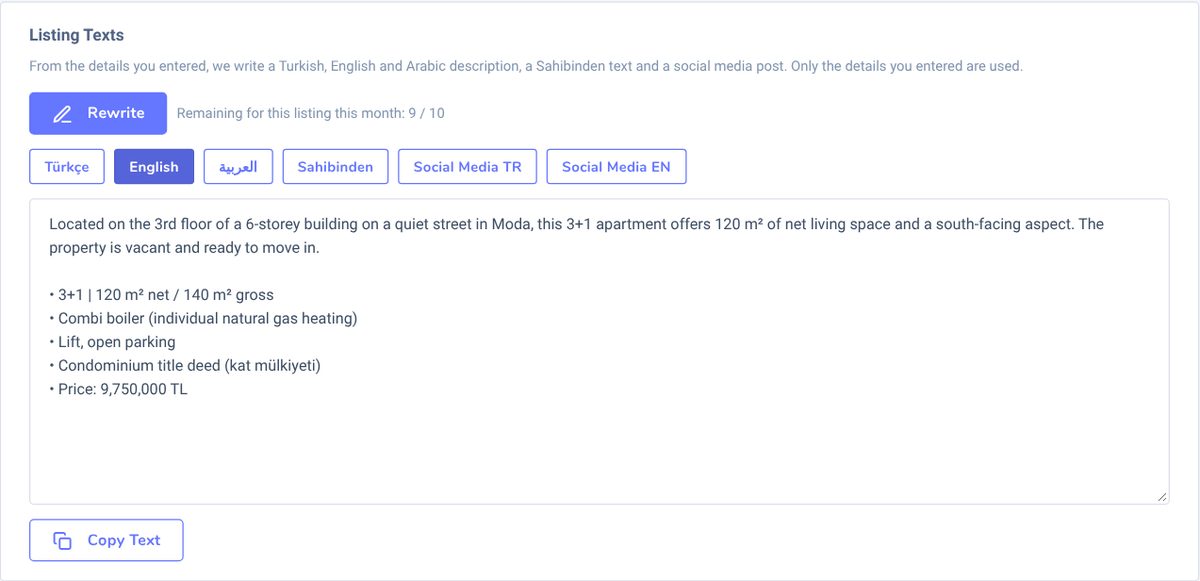
- Only the details you entered are used. The AI is told not to write distances, views, information about the area or claims like "an opportunity not to be missed" that are not in the form. Price and floor area are written exactly as entered. Still, read the text once before publishing it; as the advertiser, you are responsible for the content of the listing.
- The property number, the authorisation end date and the map location are not sent to the AI.
- Writing texts is included in your listing allowance, with no extra charge. To prevent misuse, texts can be written at most 10 times per listing per month; the remaining number is shown next to the button. If something goes wrong, it is not counted.
- If you change the listing details after the texts were written, the warning "The listing details changed after the texts were written" appears. Use Rewrite to get new texts with the current details.
10.Listing video
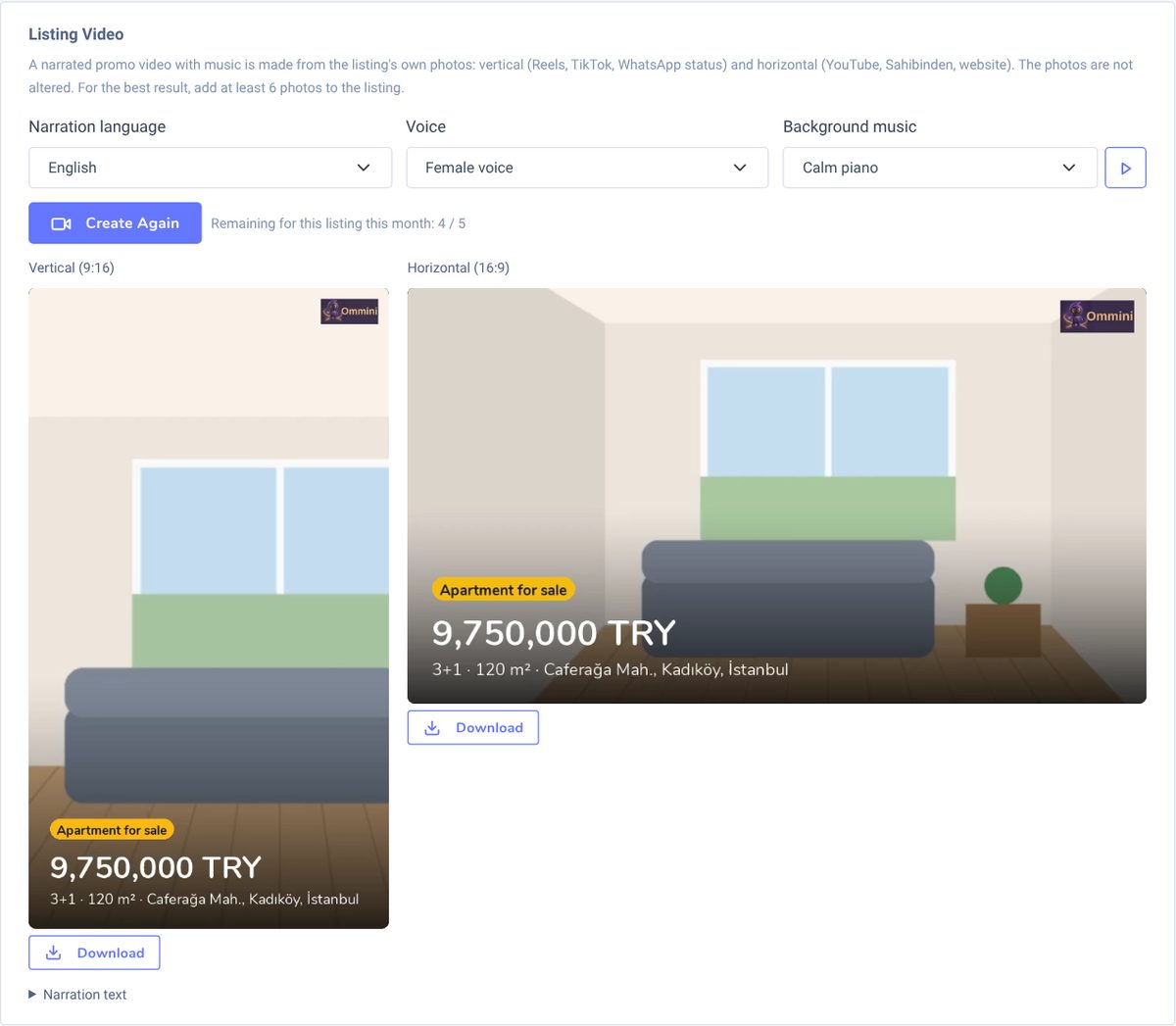
The Listing Video box appears on the form of a ready listing, below the Listing Texts box. The video is made from the listing's own photos; the AI does not touch the photos, so the property looks exactly as it is. One click gives you two videos: vertical 9:16 (Reels, TikTok, Shorts, WhatsApp status) and horizontal 16:9 (YouTube, Sahibinden, your website).
- Narration language: Türkçe, English or العربية.
- Voice: Female voice, Male voice or My own voice (see below).
- Background music: Calm piano, Modern acoustic, Luxury cinematic or Energetic. Listen with the ▶ button next to it and choose the one that suits your listing.
Press the Create Video button. The video is ready in 1–3 minutes; you can leave the page meanwhile, and it appears in the box when ready. Watch the videos in the box and save them to your device with Download.
What is in the video
- While each photo is on screen, a sentence that fits that photo is read: the kitchen is described while the kitchen is shown, the bathroom while the bathroom is shown. The AI looks at the photo only to understand what it shows; every piece of information spoken comes from the listing form. Nothing that is not in the form is said.
- The listing title appears at the start; the listing type, price, number of rooms, m² and location are shown under the photos.
- The final card shows your company logo, your photo, the company name, full name and phone from your Agent Profile, and the link to the listing page in the selected language.
- Up to 10 photos are used, in the order they have in the listing. For the best result, add at least 6 photos; with fewer photos, the same photos are shown again with a different framing.
- On the Free plan, the video carries the Ommini logo.
In your own voice
Choose My own voice as the voice. Write the text you will read yourself, or have it written with Have AI Write the Text and edit it (10 times per listing per month, separate from the video allowance). Then read it into your phone or computer microphone with Start Recording (up to 90 seconds), or add a file you recorded earlier with Upload Audio File. Listen to the recording and press Create Video. Silence at the start of the recording is removed and the volume is evened out. In this mode the photos play in order throughout the narration.
11.Frequently asked questions
Why did my listing go back to "Draft"?
You deleted or emptied a required field on a ready listing. During this time the listing page shows "not available". Check the list of missing fields at the top of the form, fill in the field and press Complete Listing again. The link does not change and the listing is not counted again.
The link I shared says "This listing is not available at the moment".
There are four possible reasons: the listing has gone back to draft, you took it offline, the authorisation end date has passed, or the listing was deleted. The box at the top of the listing form tells you which. If it is a draft, complete it again; if you took it offline, press Publish again; if the authorisation has expired, enter the new end date. In all three cases the same link opens again. The link of a deleted listing does not come back.
The WhatsApp link preview shows no photo.
WhatsApp keeps a link's preview in memory for a while. If there was no cover photo when the link was first shared, or the page could not be opened at that moment, the old (empty) preview may keep appearing. Try sending the link to another chat, and make sure your cover photo is first.
The listing page has no WhatsApp and Call buttons.
The Phone and WhatsApp fields in your Agent Profile are empty. Once you fill in the profile, all your listing pages update immediately.
A photo did not upload.
Check that the photo is JPEG, PNG or WEBP, smaller than 20 MB, and that its shorter side is at least 400 pixels. If the listing already has 20 photos, delete one before adding a new one.
I deleted a listing. Do I get the allowance back?
No. The allowance is used when a listing is completed for the first time and is not returned when it is deleted. Your allowances renew at the start of the new month.
The AI text contains wrong information.
The text is written only from the details in the form, so first check the relevant field and your Detailed Information choices. If the form is correct, press Rewrite, or correct the text where you publish it after copying.
I cannot see the listing I started on my phone on my computer.
Make sure you are signed in with the same account on both devices and refresh the My Listings page. If you closed the page on your phone before seeing "All changes saved", the changes from the last few seconds may not have been saved.
What happens to my listings if I delete my account?
When you delete your account with Delete Account on the Settings page, all your listings, photos, videos and your Agent Profile are permanently deleted, and the listing links never open again. If you open a new account with the same email address, the listing credits you used that month count as used in the new account too.
If you have any other questions, write to us from the support bubble at the bottom right of the panel.